
Social Media Content Creator Tools for 2026: The Best Picks for Writing, Design, Video, and Scheduling
Get a faster, on-brand workflow: compare social media content creator tools for writing, design, video, and scheduling, with real 2026 prices.

Dana Willow
Senior Marketer sharing 15 years of marketing wisdom through an AI lens.
Published on October 9, 2026
Updated on October 9, 2026

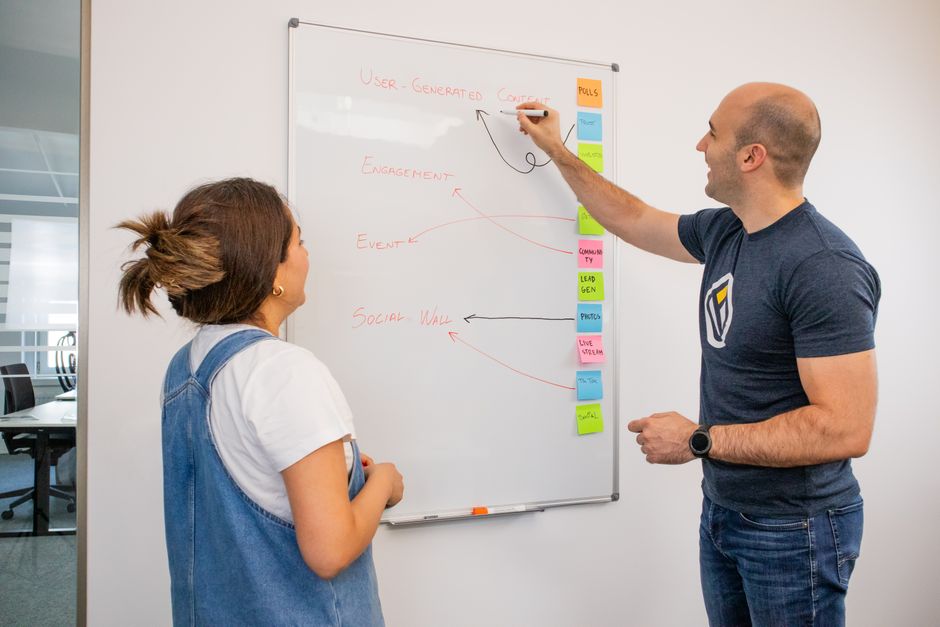
Tools for writing, design, video and scheduling that social creators rely on.
Key Takeaways
- Sort tools by the job they do (writing, design, video, or scheduling) before you compare features or prices.
- Most small teams need one tool per job, or one platform that covers several jobs, not ten overlapping subscriptions.
- Generic AI writing is the biggest risk to brand trust. Favor tools that learn from your own past content.
- Starting prices range from free tiers to $199+ per seat per month, so total stack cost matters more than any single price tag.
- Run a 7-day trial with real content and score each tool on output quality, editing time, and how well it fits your workflow.
What Are Social Media Content Creator Tools?
Social media content creator tools are software that helps you plan, write, design, edit, schedule, and publish social posts, and they cover four jobs: writing, design, video editing, and scheduling. The scale explains the demand: DataReportal reports 5.79 billion people now use social media worldwide, more than two-thirds of everyone on Earth, so every brand competes for attention in a feed that never stops refreshing, and a single creator or small team is expected to publish consistently across several platforms without burning out or losing quality. The stakes are rising too, because nearly half of U.S. teens (48%) now say social media has a mostly negative effect on people their age, up sharply from 32% in 2022 (Pew Research Center), which signals that audiences are growing tired of generic, low-effort posts and quickly punish content that feels mass-produced, careless, or indifferent to them.
This guide is organized around the four jobs a good toolkit has to handle:
- Writing: captions, threads, LinkedIn posts, and hooks.
- Design covers graphics, carousels, thumbnails, and brand templates.
- Video: short-form editing, captions, and clip repurposing.
- Scheduling covers calendars, queues, cross-posting, and approvals.
Social users now make up a "supermajority" online, with 5.66 billion users worldwide. Good tools remove the busywork so your time goes into original ideas, not formatting and posting.
Writing and Copy Tools: Drafting Posts That Sound Like You
AI writing tools for social media are software that drafts, rewrites, and adapts post copy from a prompt or brief, ranging from general chatbots to marketing generators and tools trained on a specific brand's voice. The real difference is not speed, because every option on this list produces a draft in seconds, but whether the draft sounds like a person your audience already trusts or like the same polished, interchangeable text everyone else publishes. That interchangeable output is what readers call AI slop, and it shows up when a founder types a generic prompt into a generic model, accepts the first answer, and posts it, which is why tools that learn your voice from your own past writing tend to beat prompt-only tools, since they start from your phrasing instead of an average of the internet.
General-purpose AI chatbots
ChatGPT and Claude handle brainstorming, hooks, and rewrites well. Voice quality depends on how much style guidance you paste in and maintain.
Marketing copy generators
Jasper and Copy.ai add templates, brand kits, and team workflows. They suit campaign volume more than a personal founder voice.
Voice-trained writing tools
In practice, tools like PostKing fine-tune a model on your past posts and website copy. The draft starts from your vocabulary and rhythm rather than from a prompt you rewrite every time.
| Tool | Best for | Learns your voice? | Starting price |
|---|---|---|---|
| ChatGPT Plus | General drafting and brainstorming | Partly, through custom instructions | $20/month |
| Claude Pro | Long-form drafts and editing | Partly, through projects and style settings | $20/month |
| Jasper | Marketing teams with brand kits | Brand voice settings | From ~$39/month (annual) |
| Copy.ai | Sales and marketing copy workflows | Limited | Free tier; paid from ~$29/month |
| PostKing | Founders who need on-brand posts across channels | Yes, a model fine-tuned on your own writing | From $14.99/month (Growth, 3 brands); 7-day trial with 350 credits |
Pros and cons
- Drafting time drops from minutes to seconds, so you can test more angles per week.
- Chatbots are flexible and cheap, but you carry the burden of keeping prompts consistent.
- Marketing generators scale across teams, yet their output often reads like a template.
- Voice-trained tools need your existing posts as input, so brand-new accounts have less to learn from.
Design and Image Tools: Visuals Without a Full-Time Designer
Social design tools are software that lets non-designers produce on-brand graphics through template editors, AI image generators, and brand kits, which store logos, colors, and fonts so every post stays visually consistent without a full-time designer's help. Brand kits matter more than template count, because a library of thousands of layouts is useless if each one needs manual recoloring, while a locked palette and font set turns every template into something unmistakably yours. Usage figures show how fast these tools spread: Canva reports that organizations using it saw a 60% increase in content creation within one month (Canva Business), and its Magic Studio AI suite has been used over 6 billion times (Lovable), though both figures are vendor-reported and reflect each company's own measurement, not independent testing, so treat them as directional signals, not guarantees.
| Tool | Best for | Learning curve | Starting price |
|---|---|---|---|
| Canva | Templates, carousels, brand kits | Low | Free; Pro from ~$15/month |
| Adobe Express | Quick branded graphics with Adobe assets | Low | Free; Premium from ~$9.99/month |
| Figma | Custom design systems and templates | Medium to high | Free; paid plans from ~$16/seat/month |
| Piktochart | Infographics and data visuals | Low to medium | Free; paid from ~$14/month |
Pick by workflow, not feature lists. Canva and Adobe Express suit teams that need speed, Figma rewards those willing to build reusable systems, and Piktochart fits data-heavy posts. Prices change often, so confirm current plans before committing.
Video Tools: Short-Form Editing and Repurposing
Video creator tools are software that trims, captions, and reformats footage, spanning mobile editors, text-based editors, and AI clippers that turn one long video into Reels, Shorts, and TikToks. One long video should feed a week of clips, so the right tool depends on where your hours disappear: manual cutting, audio cleanup, or hunting for the best moments inside an hour of footage. Quality matters beyond looks, because clean cuts and accurate captions make a brand seem credible, and credibility is what nudges a viewer from watching toward buying. Guides like Salesforce's content creator tool list sort options by job to be done, and the same logic applies here: pick by output quality and editing time, then check current pricing on each vendor's site before committing, since starting tiers and feature limits change often across every plan.
- CapCut: a free mobile and desktop editor with templates and auto-captions, where Pro adds premium effects and AI features. It is the fastest route to a polished TikTok or Reel.
- Descript lets you edit video by editing the transcript, so deleting a sentence cuts the footage. It suits podcasts and talking-head content, though paid plans gate most transcription and AI features.
- OpusClip: an AI clipper that scans a long video, picks high-potential moments, and exports short vertical clips with captions. Editing time drops sharply, but you should still review each clip before posting.
- InShot is a simple mobile editor built for Instagram-first creators who want trims, filters, and music without a learning curve. Its output is clean but less customizable than CapCut or Descript.
In practice, many creators combine two of these tools. An AI clipper finds the moments, and an editor like CapCut or InShot adds the final polish and brand styling.
Scheduling and Publishing Tools: Consistency on Autopilot
Scheduling and publishing tools are software that queues, times, and posts social content automatically across networks using calendars, cross-posting, and approval workflows, so a brand publishes consistently without anyone logging in at posting time. Queues hold evergreen posts for reuse, calendars show gaps across the week, cross-posting adapts one draft to several networks, and approval workflows let a manager review copy before anything goes live. Quality matters more than volume alone, because audiences and algorithms reward accounts that show up predictably, and a steady rhythm of average posts usually beats occasional bursts of brilliant ones, which is why teams automate the publishing step first. The catch is that most schedulers only publish content you have already written, which leaves the slowest part of the job, drafting and adapting each post, entirely on your plate, whatever the interface looks like.
| Tool | Platforms covered | Creates content too? | Starting price |
|---|---|---|---|
| Buffer | Major networks | Basic AI assistant | Free; Essentials ~$6/channel/month |
| Later | Instagram-first, plus major networks | Captions and visual planner | From ~$25/month |
| Hootsuite | Major networks plus social inbox | AI caption help | From ~$99/month |
| SocialBee | Major networks, category-based queues | AI Copilot | From ~$29/month |
| Sprout Social | Major networks plus listening and analytics | AI assist | From ~$199/seat/month |
| PostKing | LinkedIn, X, Instagram, Threads, Facebook | Yes: posts, visuals, blogs, landing pages | From $14.99/month |
Most of these tools add AI as a helper, not as the engine. Roundups such as Sprout Social's creator tools guide show how scheduling and creation now overlap, yet the drafting still tends to start with you.
In practice, tools like PostKing close that gap by writing, adapting, and scheduling posts for five platforms in one place, with a review-and-approve step before publishing. A pure scheduler gives you the calendar and leaves the blank page.
Pick based on where your bottleneck sits. If you already have a steady supply of finished posts, a queue-based scheduler is enough. If writing is the hard part, favor a tool that creates as well as publishes.
All-in-One Platforms vs. Stacking Specialist Tools
An all-in-one platform suits solo founders and small teams, while a specialist stack suits organizations with dedicated designers or video editors, because every extra tool adds a handoff, a login and another place for your brand to drift. Consolidated platforms trade peak performance for speed and consistency. Specialist stacks do the opposite, giving each job a best-in-class tool at the price of coordination. Neither wins in every case, and any claim that one tool fits all teams should be treated with suspicion. The real question is who does the work. If one person writes, designs and schedules, switching between five apps eats the hours that tool depth was meant to save. If three specialists each own a stack, a single shared platform may feel like a ceiling. Roundups such as Post Planner's guide to content creation tools show how many niche options exist, which is exactly why choosing deliberately matters.
| Factor | All-in-one platform | Specialist stack |
|---|---|---|
| Monthly cost | One subscription | Three to five subscriptions combined |
| Brand consistency | One voice and asset source | Depends on manual coordination |
| Feature depth | Good enough for most jobs | Best in class for each job |
| Setup and learning curve | One onboarding | Several onboardings and integrations |
| Best for | Solo founders, SMEs, NGOs | Teams with specialist roles |
Decision checklist
- Do you have a dedicated designer or video editor who will use advanced features daily? Choose specialists.
- Team size: if one or two people produce all content, start with an all-in-one.
- Can you spare time to maintain integrations and keep brand assets synced across apps?
- If a single missing feature blocks your best content format, add one specialist tool.
- Budget: compare the combined cost of the stack, not just the price of the headline tool.
Sample Tool Stacks by Budget and Team Size
The right content creator tool stack depends on your bottleneck, budget and team size: solo founders need two or three low-cost tools, launch teams need collaboration and approvals, and multi-program organizations need permissions and brand separation. Start by naming the single job in your current workflow that slows you down most, whether that is drafting, design, scheduling or approvals, and buy a tool for that job only before adding anything else. Roundups such as Salesforce's list of content creator tools sort options by job, which makes it easier to match each tool to a real bottleneck instead of chasing whatever is trending this quarter. The three stacks below are illustrative examples, and every monthly figure is an approximation, so confirm current pricing and plan limits before you commit, because vendors revise both frequently and sometimes with little notice.
Solo founder on a tight budget
- Drafting: a general-purpose AI assistant on a free or entry tier.
- Canva's free plan handles carousels and simple graphics.
- A native scheduler or a free-tier scheduling tool covers publishing.
- A basic notes app or spreadsheet works as the content calendar.
Expect roughly $0 to $30 per month in total.
Small SaaS team running a launch campaign
- Planning: a shared board in Notion or Trello for briefs and deadlines.
- A paid design tool with brand kits keeps five people visually consistent.
- An AI writing tool drafts variations, and an editor approves them.
- A scheduler with approval steps publishes across LinkedIn and X.
- A video editor with auto-captions trims the short clip.
Budget roughly $100 to $300 per month, depending on seats.
NGO or multi-program organization
- Each program needs its own voice, audience and approval path.
- Nonprofit discounts on design and project tools lower the baseline.
- Governance: in practice, platforms like PostKing offer brand-level switching and role permissions, with its Growth plan covering three brands.
- A shared asset library prevents programs from reusing the wrong logo or tone.
Plan on roughly $100 to $250 per month before discounts.
Campaign walk-through: one asset, five formats
Record one 20-minute webinar or interview. Transcribe it, then turn the transcript into a blog post, a LinkedIn post, an X thread and a carousel. Cut the strongest 45 seconds into a short clip with captions, and schedule all five across one week.
Fitting Creator Tools Into Your Wider Marketing Stack
Social content works best when it feeds everything else: your blog, email list, analytics and search strategy should share one message, one keyword plan and one reporting layer instead of running as separate silos. A creator tool that sits alone forces you to copy, paste and reformat every asset by hand. That wastes the time the tool was meant to save. A connected stack does the opposite, because a single idea becomes an article, a handful of posts, a newsletter blurb and a landing page headline without losing its core claim. Adoption is already moving this way, since the share of marketers who don't use AI for blog creation fell from 65% to 5% in two years (HubSpot 2026 State of Marketing Report). Blog and social workflows are now converging. Your tools should be built for that overlap, and your keyword research should guide both channels from the start.
Blog checklist
- Blog/CMS: can social posts be repurposed from articles, or the reverse?
- SEO: do keyword research and social topics come from one plan?
- Email: can you reuse post copy in newsletters without rewriting it?
- Analytics: are UTM tags and reporting built in, so traffic is traceable?
- Automation: native integrations, Zapier/Make, or API access.
Rank automation options in that order. Native integrations are the most reliable and need no upkeep. Zapier or Make fills the gaps when a CRM or link-in-bio page lacks a direct connection. API access suits larger teams with custom needs, but it requires developer time.
How to Judge Ease of Use, Learning Curve, and Output Quality
Judge an AI social media tool by editing time per post, not generation speed, because a draft that appears in seconds but needs twenty minutes of rewriting costs more than a slower, cleaner one. Generation speed is the number every vendor advertises, yet the hours that matter are spent afterward, trimming hype words, fixing tone, and reformatting for each network; a Salesforce survey found generative AI saved marketers five hours per week on content tasks, and heavy rewriting quietly erodes that gain. Score every tool you shortlist on the five criteria below using your own real content, with a stopwatch running, a blind comparison against your past posts, and the same idea posted to LinkedIn, X, and Instagram, because polished demo outputs rarely predict how a tool behaves on your actual niche topics, audience, and voice.
| Criterion | What to test | Red flag |
|---|---|---|
| Time to first post | Sign up and publish one real post | Over an hour of setup |
| Editing time | Minutes spent fixing each draft | Rewriting most of every draft |
| Brand fit | Blind-compare drafts with your own posts | Hype words, emoji overload, generic hooks |
| Platform fit | Same idea on LinkedIn vs. X vs. Instagram | Identical copy pasted everywhere |
| Support and billing | Review sites and response time | Unresolved billing complaints |
Support and billing deserve a real score, not an afterthought. Customer support and billing issues for Perplexity are extensively documented on Trustpilot across 274 reviews, a reminder that a strong model can still come wrapped in a frustrating account experience.
Run a one-week trial with ten real posts you would actually publish. Rate each criterion from one to five, total the scores, and let your own numbers outrank any "best of" list.
Quality Control, Ethics, and Bias in AI Content Tools
Quality control for AI content tools means a human reviewer approves every draft, checks facts, verifies image rights, screens for bias, and discloses AI use where required before publishing. AI speeds drafting, but humans still own what gets published. The concern is widespread: 98% of organizations expect AI to deliver key business outcomes, yet 55% rank content quality control as a top concern (Bynder). Models invent statistics, misquote sources, and produce confident errors. AI images can echo copyrighted styles, and licensing terms differ by tool. Generated copy and visuals also tend to repeat stereotypes about gender, age, and culture. Feeds are saturating with generic AI output, so a distinct voice is what sets a brand apart. A written voice guide gives reviewers a clear standard for tone, vocabulary, and claims the brand will not make.
Build these safeguards into your workflow before scaling output:
- Human approval: keep a named person responsible for signing off before anything goes live.
- Fact-check every stat and claim in AI drafts against the original source.
- Check image rights and licensing terms, especially for commercial use.
- Review visuals and copy for stereotyped or biased output, and regenerate when it appears.
- Disclosure: label AI use where platforms or regulations require it, and track rule changes as they arrive.
Treat these steps as part of the process, not an afterthought. Review time is far cheaper than a retraction.
Choosing Tools for NGOs, Regulated, and Niche Industries
Niche audiences punish generic content fastest, so teams in nonprofits, regulated fields, technical B2B, and multilingual markets should pick AI content tools by approval controls, accuracy safeguards, and context handling rather than by raw output volume. A tool that suits a retail brand can fail badly here. Readers in these fields notice vague claims, wrong terminology, and tone that misses the mark. The right choice depends on who must sign off, what the content can legally say, and how much domain depth the audience expects. Start by mapping your review chain and your risk level. Then test each tool on a real, difficult piece of content instead of a polished demo. A tool that handles your hardest case well will handle the routine work easily. A tool that stumbles on it will create cleanup work every week.
Nonprofits and NGOs
- Separate workspaces or voice profiles for each program, so a youth initiative does not sound like a fundraising appeal.
- Simple approval steps that volunteers and board members can use without training.
- Budget fit: flat pricing and nonprofit discounts matter more than advanced features.
Finance, health, and other regulated fields
- A full approval trail showing who edited, reviewed, and cleared each piece.
- Controls for required disclaimers and banned claims, such as guaranteed returns or cure language.
- Source checking: every factual statement should trace back to a citation a compliance officer can verify.
B2B SaaS and technical products
- Long-form LinkedIn depth, not just short posts.
- Technical accuracy, with room to feed in product documentation and engineer review.
- Consistent terminology for features, integrations, and use cases.
Multilingual and multi-market teams
- Native-quality drafting in each language, not literal translation from English.
- Local tone and examples, since a US audience and a Czech audience expect different phrasing and references.
- Market-level scheduling: separate calendars and time zones for each region.
Prioritize approval trails, accuracy controls, and audience-specific voice over speed or feature count, and test every shortlisted tool on your hardest real content before committing.
FAQs About Social Media Content Creator Tools
What are the best social media content creator tools for beginners?
Start with Canva for graphics, CapCut for short-form video, and Buffer for scheduling. All three have free tiers and gentle learning curves. Pick one tool per job (design, video, scheduling) and learn it well before you add more. A small stack you actually use beats a long list of subscriptions you don't.
Are there free social media content creator tools that are actually good?
Yes. Canva, CapCut, and Buffer all offer free plans that are good enough to publish consistently. The limits are usually on features and volume. Paid tiers typically include brand kits, premium templates, higher scheduling limits, and extra connected channels. Use the free plan until you hit a limit that slows you down. Upgrade only then.
How do I stop AI tools from making my brand sound generic?
Give the tool your voice before you ask it to write. Train it on your best past posts, add a short style guide with preferred words, phrases to avoid, and sentence length, and use any brand voice feature the tool offers. Then add a human editing pass. Cut filler, add a specific detail or opinion only you would share, and read the post aloud to check that it sounds like you.
Should I use one all-in-one platform or several specialist tools?
It depends on team size, roles, and budget. Solo creators and small teams usually do better with an all-in-one platform. It means fewer logins, simpler workflows, and one bill. Larger teams with dedicated designers, video editors, and community managers often prefer specialist tools, because each one goes deeper in its area. Compare the total monthly cost of the whole stack, not just the price of each tool, and factor in the time lost moving files between apps.
How much should a small business spend on content creation tools?
A solo operator can often cover writing, design, video, and scheduling for under $50 per month. As you add team members, channels, or posting volume, the cost rises. Compare your tool spend against the alternative. A freelancer or agency commonly costs several hundred to several thousand dollars a month. If your tools save you hours and keep your posting consistent, they're usually the cheaper option. Review the stack every quarter and cancel what you don't use.
Can one tool create and schedule posts for LinkedIn, X, Instagram, Threads, and Facebook?
Yes. Several platforms now handle both creation and scheduling across all five networks. Look for tools that create platform-aware variations of one idea. These adjust length, tone, hashtags, and format for each network, such as a longer LinkedIn post, a tighter X post, and a visual-first Instagram caption. An integrated scheduler then queues each version at the right time. Check each platform's connection limits and review every variation before publishing.
Is it ethical to use AI for social media content?
Yes, when you use it responsibly. Have a person review everything before it goes live, and fact-check any claims, statistics, or quotes, because AI can state wrong information with confidence. Disclosure norms vary by platform and audience. Follow each network's labeling rules for AI-generated or altered media, and be open about it when realistic synthetic images or video could mislead people. Treat AI as an assistant that speeds up your work. You stay accountable for what you publish.
Common Mistakes When Choosing Social Media Content Creator Tools
- Buying tools before naming the bottleneck: If writing is what slows you down, a better scheduler won't help. Find the job that blocks you, then pick a tool for it.
- Accepting generic AI copy as 'good enough': Hype-heavy, interchangeable posts wear down audience trust. Choose tools that learn from your past content, and always edit before you publish.
- Stacking overlapping subscriptions: Three tools that each include AI captions and scheduling waste budget and split your brand assets. Audit for overlap every quarter.
- Posting identical copy on every platform: LinkedIn, X, Instagram, and Threads reward different formats and lengths. Adapt each post to the platform, or use a tool that does it for you.
- Judging tools on demos instead of real content: Demo prompts always look good. Test with your own topics during a trial and measure how long each draft takes to edit.
- Skipping the human approval step: Unreviewed AI output can publish factual errors, biased visuals, or off-brand claims. Build in a review-and-approve step.
Related Guides
- Social Media AI: What It Actually Does
- Best Free Social Media Schedulers in 2026
- How to Schedule Social Media Posts
- Social Media Marketing for Small Business
- PostKing vs Later
Sources
About Dana Willow
Author
Senior Marketer sharing 15 years of marketing wisdom through an AI lens. Teaching founders to automate smarter.