

PostKing SEO Dashboard: Search Console, Bing and Analytics in One View
The PostKing SEO dashboard puts Search Console, Bing and Analytics in one view and turns the data into a worklist of what to fix first.

Dite Gashi
10 years of full stack development experience.
Published on October 8, 2026
Updated on October 10, 2026
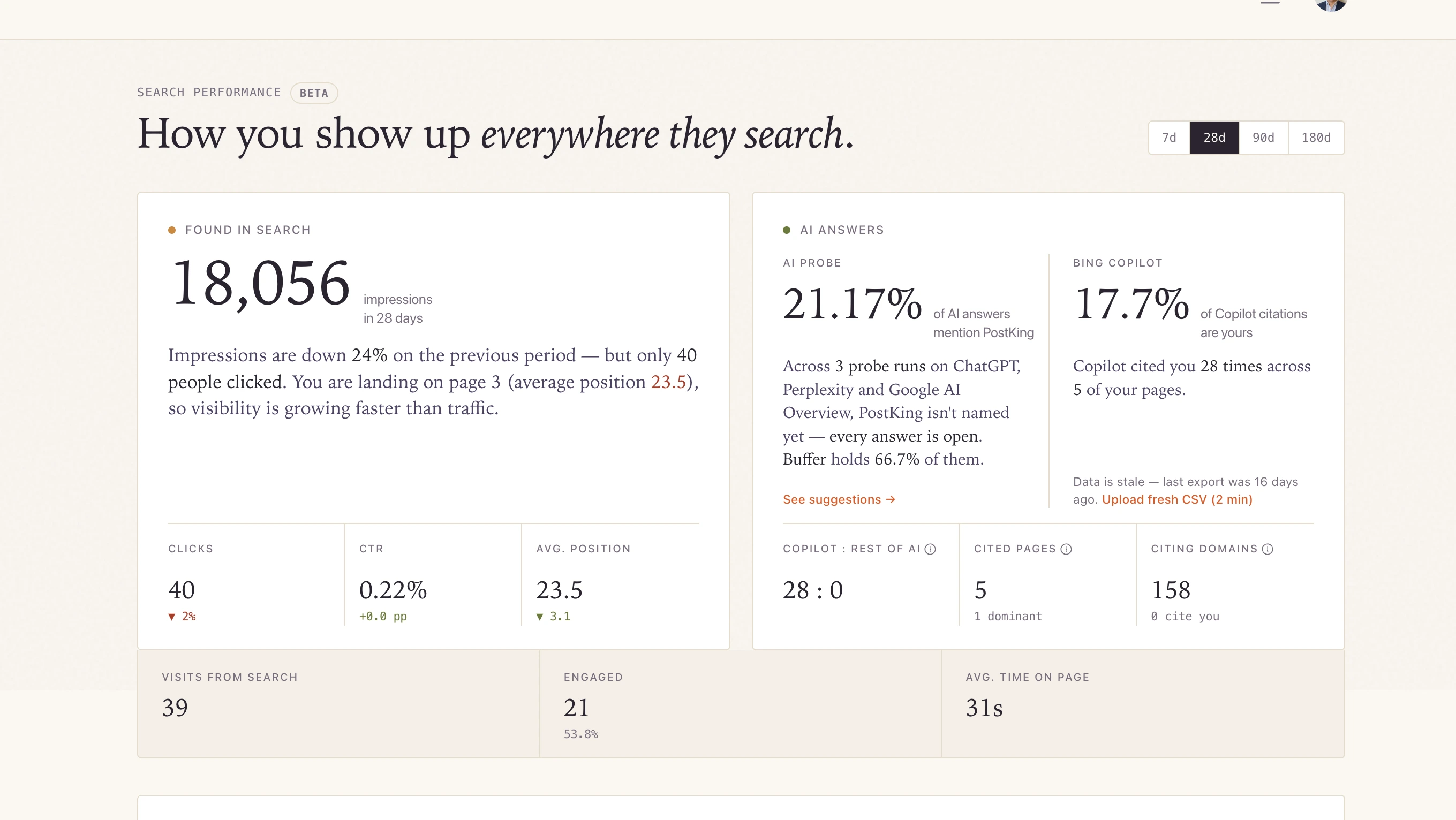
Search Console, Bing and analytics data side by side in the PostKing SEO dashboard.
The PostKing SEO dashboard is a single view of your Google Search Console, Bing Webmaster Tools and Google Analytics data that ends in a worklist of what to fix first. You can set one up for your domain with the free setup tool: enter a work email and your website address, and the dashboard is ready in about 20 seconds. No card is needed.
Key Takeaways
- One view replaces three tabs: Search Console, Bing Webmaster Tools and Google Analytics.
- You see clicks, impressions, click-through rate and average position, each next to the previous period.
- A worklist turns the numbers into tasks, such as pages that are seen but not clicked and queries with no page that answers them.
- Keyword positions come from your own Search Console and Bing data. They are averages, not daily spot checks.
- From a worklist item you can draft new titles or start a content brief without leaving PostKing.
Why We Built an SEO Dashboard
We built the dashboard because the tools that hold your search data tell you what happened and stop there. Search Console shows queries and positions. Bing Webmaster Tools shows the same for Bing. Analytics shows what visitors did next. Answering one practical question, what should I fix first, meant opening all three and doing the comparison by hand.
Most founders we talk to do not do that comparison. They check Search Console when traffic drops, look at a chart, and close the tab. The dashboard is for them.
What the SEO Dashboard Shows
The dashboard shows four things for your domain, in the order you would normally ask about them.
| View | What it contains | Question it answers |
|---|---|---|
| Summary | Clicks, impressions, CTR and average position for Google and Bing, with the previous period | Is search traffic going up or down? |
| Top queries | Each query with clicks, impressions, CTR and position, split by Google and Bing | What do people search to find us? |
| Top pages | Each page with the same four metrics | Which pages earn their impressions? |
| Worklist | Prioritised tasks with the evidence, expected impact and effort for each | What should I fix first? |
How the Worklist Works
The worklist is a short list of tasks generated from your own data, each with the numbers that justify it. It is the part of the dashboard we use most ourselves. Two kinds of item come up on almost every site:
- Pages that are seen but not clicked. These have many impressions and almost no clicks. The usual fix is a clearer title and description, or more depth so the page moves off page two.
- Queries you rank for by accident. These are searches where you appear at position 20 or 30 and have no page written for them. Each one is a candidate for a new article or side page.
Every item states its impressions, clicks and position, so you can check the reasoning before you act on it.
Keyword Position Tracking
The dashboard tracks keyword positions for every query Search Console and Bing report, not a fixed list you set up in advance. That means the queries you never thought to track show up too, which is where most surprises are. Two free tools cover the same ground on their own: the PostKing Rank Tracker for keyword positions and the Search Console Dashboard for your Google Search Console data.
There is a trade-off, and we would rather state it than hide it. These positions are averages across devices, locations and days. If you need a daily position for a specific keyword in a specific city, or you want competitors' positions, a dedicated rank tracker does that better. Our rank tracker comparison covers seven of them by price, and our guide to easy SEO tracking explains when first-party data is enough.
From a Finding to a Fix
A finding in the dashboard connects directly to the content tools in PostKing, so the fix happens where you found the problem. A seen-but-not-clicked page leads to drafting new titles. A query with no page leads to a content brief. You do not have to copy a keyword into another tool to start work on it. Our guide to SEO workflow software covers automating the rest of that process.
The same area of the product also tracks AI visibility: how often ChatGPT, Perplexity and Google AI Overviews mention your brand for the topics you care about.
How to Set Up Your Dashboard
- Open the SEO dashboard setup tool.
- Enter your work email and your website address.
- Follow the link to your dashboard. A magic link is also sent to your email so you can come back to it.
Setup is free and needs no card. The content tools behind the worklist are part of PostKing's paid plans, which start at $14.99 a month after a 7-day free trial.
FAQs About the PostKing SEO Dashboard
Is the SEO dashboard free?
Setting up a dashboard for your domain is free and needs no card. Acting on the worklist with PostKing's content tools requires a plan, which starts at $14.99 a month after a 7-day free trial.
Which data sources does it use?
It uses three: Google Search Console, Bing Webmaster Tools and Google Analytics.
Is this a rank tracker?
It tracks keyword positions using average position from Search Console and Bing, for every query you appear for. It does not run daily checks by location or track competitors.
Does it replace Google Search Console?
No. It reads from Search Console and adds Bing, Analytics and a prioritised worklist on top.
Related Guides
About Dite Gashi
Author
10 years of full stack development experience. Had trouble finding distribution - founded PostKing.app in the process.